How to Place and Manage Trades on Tick2Trade: Orders, Positions, and Live P&L
Analysis is only half of trading. The other half is execution: placing the order correctly, tracking the position, and knowing exactly where your P&L stands at any moment. Tick2Trade brings the trade panel right next to your charts, so you can act on what you see without switching to a separate app. This guide walks through placing and managing trades on Tick2Trade.
The Trade panel at a glance
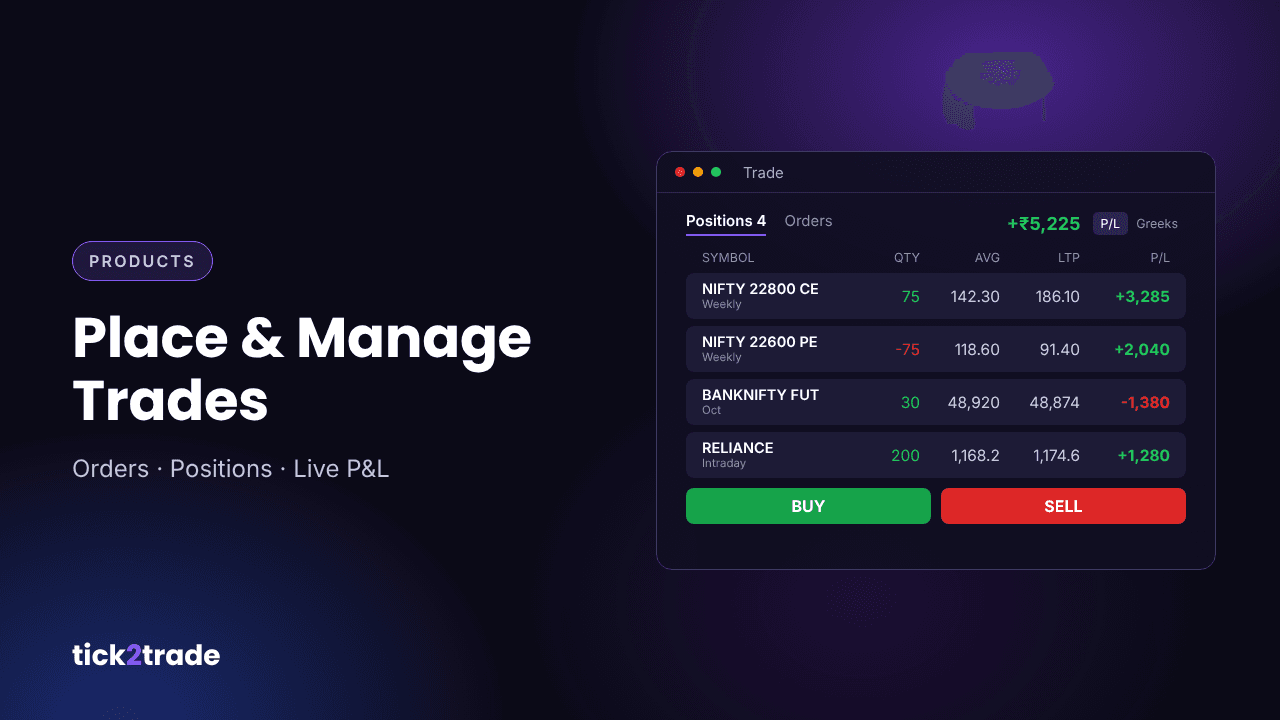
Open the Trade panel from the right-hand toolbar. It has two parts:
- Positions and Orders at the top, showing every open position with quantity, average price, LTP and P/L.
- Trade ticket at the bottom, where you add a security and place an order.
Because the panel sits beside your chart, you can watch price action and your position at the same time.
Placing an order
- Add a security. Search for the stock, future or option contract you want to trade.
- Choose buy or sell. Double-check the direction, especially when selling options.
- Pick the order type. Use a market order when speed matters and a limit order when price matters.
- Enter quantity. For F&O, quantity is in multiples of the lot size.
- Review and place. Confirm the contract, expiry and strike before you submit.
Tracking positions and live P&L
The Positions tab shows a live total P/L at the top and a line for each position. For a multi-leg options strategy, each leg appears separately, so you can see which leg is helping and which is hurting. You can expand a position to see its details and act on it directly.
Switching to the Greeks view
Options positions are driven by more than price. Toggle from P/L to Greeks to see your portfolio's delta, theta, vega and gamma. This tells you:
- Delta – how much your position gains or loses for a one-point move in the underlying.
- Theta – how much you earn or lose each day from time decay.
- Vega – how sensitive you are to changes in implied volatility.
Checking Greeks before an event like an expiry or an RBI policy day helps you avoid surprises.
Managing the Orders tab
The Orders tab lists pending, executed and rejected orders. Use it to modify a limit price that has not filled, cancel orders you no longer want, and check why an order was rejected (often margin or price band limits).
Good execution habits
- Decide your stop before you enter. Then set an alert or stop order immediately.
- Avoid market orders in illiquid options. Wide spreads can cost you more than you expect.
- Review open positions before the close. Know which are intraday and which you intend to carry.
- Practise first. Use Chart Replay and the Simulator to rehearse your process without real money.
Try it on Tick2Trade
Charts, positions, P&L and Greeks in one screen make execution faster and calmer. Open the Tick2Trade chart terminal and open the Trade panel to get started.
Disclaimer: This article is for educational purposes only and is not investment advice. Trading in securities and derivatives involves risk.